ClipUploader is an automated workflow designed to capture, compress, and upload video clips to YouTube. This project was developed to solve a specific reliability issue found in commercial software.
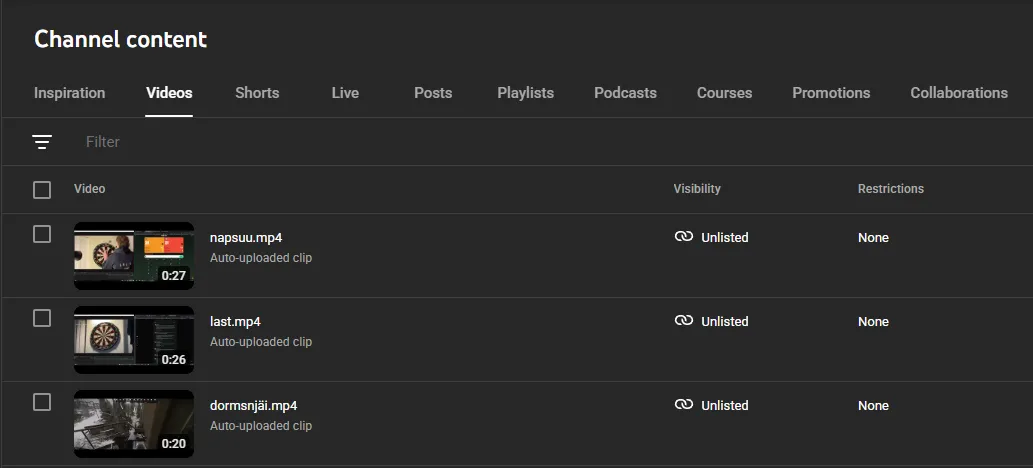
The Problem
Commercial recording tools like Nvidia ShadowPlay automatically disable their “Instant Replay” feature when a DRM-protected app (like Netflix or certain browsers) is open in the background. If a player forgets to manually re-enable it before starting a game, important gameplay moments go unrecorded.
The Solution
I built a custom pipeline using OBS Studio, which remains active regardless of other running applications. By combining OBS with a Python-based automation script, I created a “set-and-forget” system that handles the entire post-processing chain.
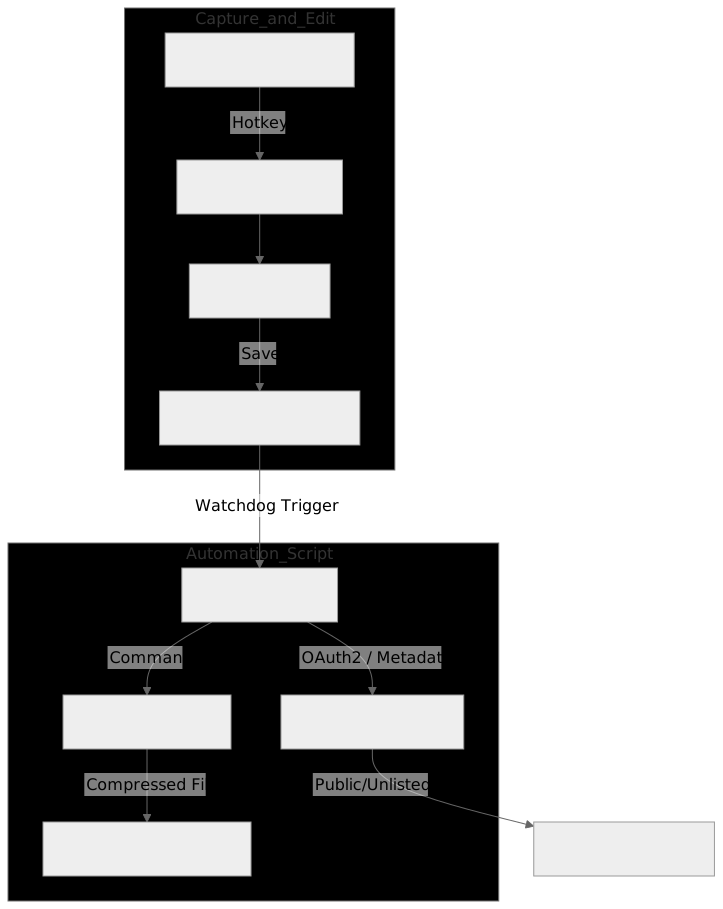 System Architecture: Local automation and API integration.
Workflow
The goal was to minimize manual intervention. The user only needs to save and trim the clip; the automation handles the rest:
- Capture: OBS Replay Buffer captures high-quality raw footage.
- Edit: The clip is trimmed using LosslessCut and saved to a watched folder.
- Automation: A Python script detects the new file and triggers FFmpeg.
- YouTube API: The compressed video is uploaded to YouTube using the Data API v3 with OAuth2 authentication.
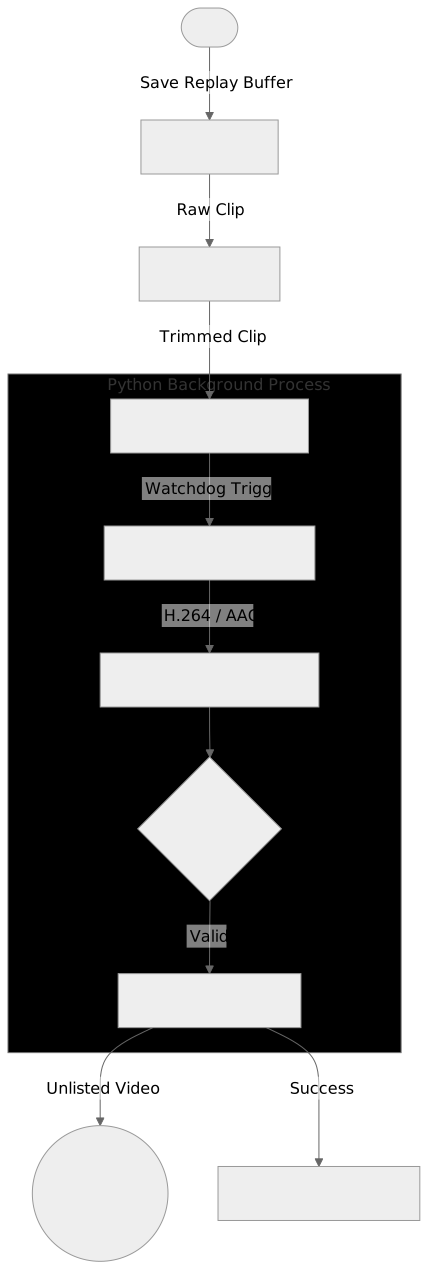 Video flow from local storage to YouTube publication.
Technical Stack
- Python: Core automation logic and directory monitoring (Watchdog).
- FFmpeg: High-efficiency video compression (H.264/AAC).
- YouTube Data API v3: Automated cloud uploads and metadata handling.
- OBS Studio: Open-source video capture bypassing DRM restrictions.
- Windows Task Scheduler: Ensures the script runs silently on system boot.
Key Features
- Reliable Capture: No “auto-off” triggers from background applications.
- Storage Optimization: Raw high-bitrate files are processed and moved to save disk space.
- Smart Logging: Prevents redundant uploads by tracking file history in
uploaded.txt.